How to change text size and spacing
If your resume runs a few lines onto a second page, or looks thin on one, the text size control is the quickest fix. It changes the size of all your text and the space between lines together, in one step.
-
Open your resume and click Preview & Download.
-
In the PDF settings box, click Compact, Comfortable, or Cozy on the Text size row.
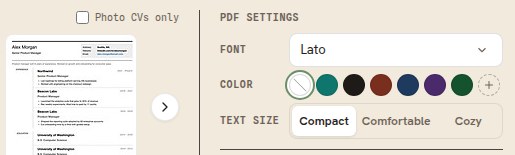
Compact tightens the text, Cozy opens it out, and Comfortable is the middle setting, and the one selected until you change it. -
Scroll down and check where the page breaks fall. Try one setting at a time until the resume ends where you want it to.
Good to know
- Text size is free on every plan.
- Text size applies to your PDF and to your public resume page. A Word file uses the layout built into that template instead.
- Compact is the fastest way to pull a short overflow back onto one page. If that is not enough, try smaller page margins next, and then cut content.
- Do not use Compact to squeeze in far too much. A page that is hard to read costs you more than a second page does.