How to add a custom section
Summary, Experience, Education, and Skills cover most resumes. When yours needs something else, you can add a section and call it whatever you like.
-
Open your resume in the editor and stay on Edit.
-
Click Add section under the Sections list on the left.
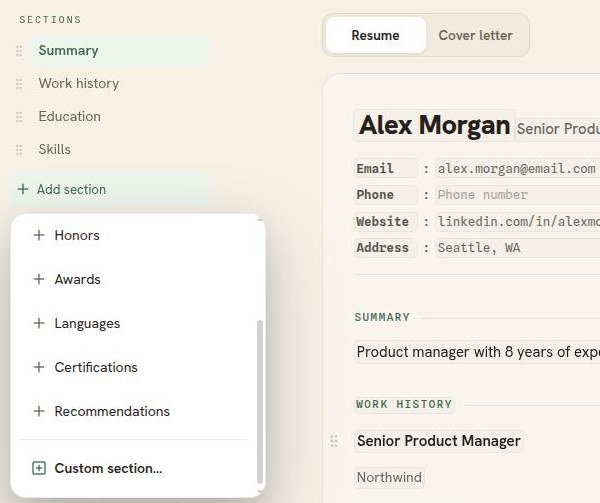
The menu lists the built-in sections your resume does not already have, with Custom section at the bottom. -
Pick one of the ready-made names, or pick Custom section for anything else. The list holds Experience, Education, Skills, Projects, Publications, Volunteering, Honors, Awards, Languages, Certifications, and Recommendations. A section you already have is left out of the list.
-
A custom section arrives with a placeholder heading, already selected. Type the name you want.
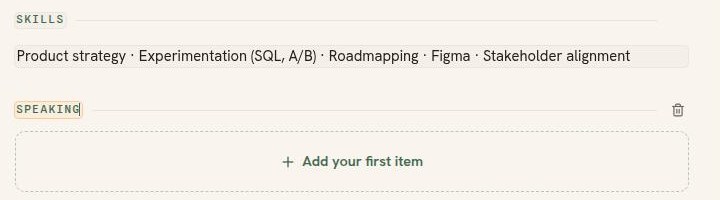
A new section is empty until you add to it. Click "Add your first item" to start.
Good to know
- You can add as many sections as you need, and drag any of them into position. See how to reorder the sections in your resume.
- A ready-made name is only a starting point. Every section can be renamed later.
- An empty section is left out of your PDF, so a section you added and never filled in costs you nothing.
- To remove a section, click its heading and use the bin icon that appears on the right of the rule.