Getting Started with Resumonk's AI Resume Builder: A Step-by-Step Tutorial
Are you ready to craft an impressive resume with the help of AI technology? Resumonk brings you these features:
- Improve with AI: Better wording for a single entry or your whole resume, with every fact kept.
- Rewrite for a job: A separate job version of your resume for a role you are applying to, with your original left as it was.
- Seamless Import Options: Import your LinkedIn profile or upload a PDF, DOCX or plain-text resume to streamline the resume creation process.
In this step-by-step tutorial, we will guide you through using Resumonk AI Resume Builder, a simple yet powerful tool that eases the resume creation. This tutorial will keep things practical and actionable, ensuring you have a polished resume ready in no time to land your dream job.
Getting started
- Go to the Resumonk start page. It is free to start, and you are not asked for any payment details.
- You do not need to sign up first. You sign in at the end, when you want to keep your resume, with one of these options:
Create resume
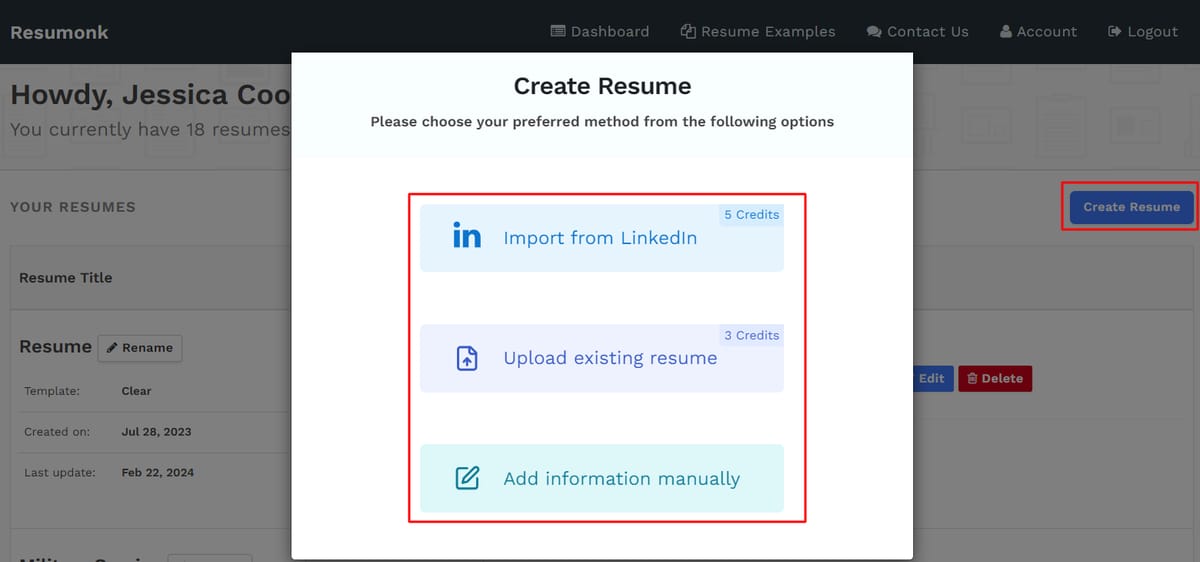
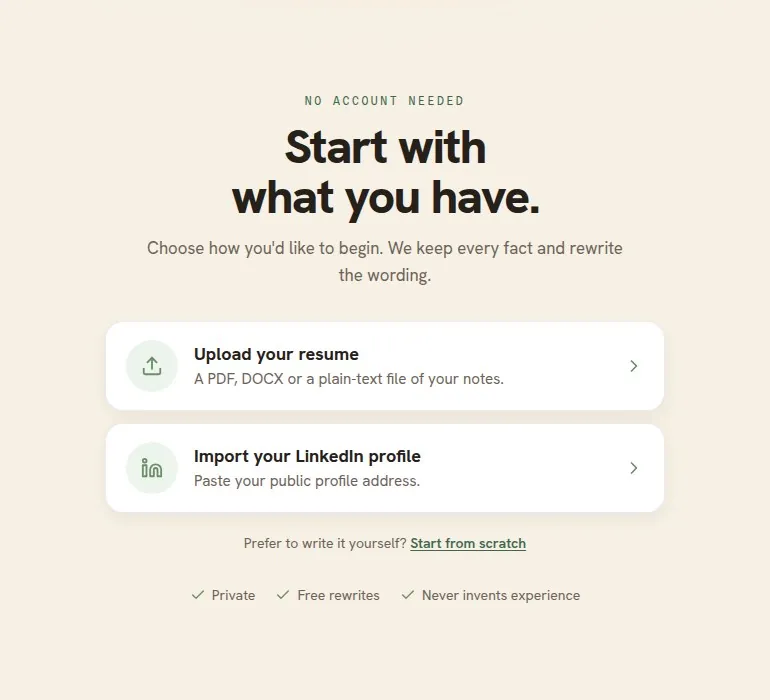
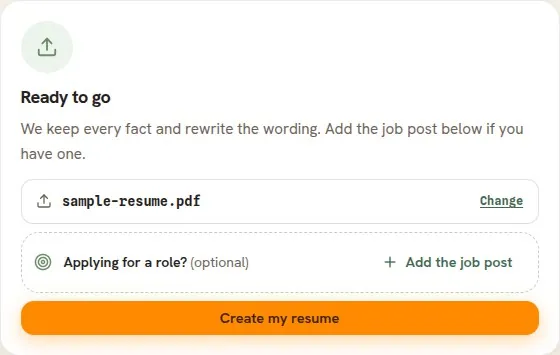
On the start page, choose how you want to begin. Resumonk rewrites what you give it into a polished first draft: it improves the wording and keeps every fact. If you are applying for a particular role, click “Add the job post” and paste the job post (or a link to it) before you continue, and Resumonk also writes a job version of your resume for that role.
- Import your LinkedIn profile -> Paste your LinkedIn profile link and click “Import profile”. Resumonk uses your profile information to write a first draft. Your email address, phone number and skills do not come across, so add them in the editor.
- Upload your resume -> Choose a PDF, DOCX or plain-text file and click “Create my resume”. Resumonk reads it and rewrites the wording, keeping every fact.
- Start from scratch -> Sign in, and the editor opens with a blank resume for you to fill in.
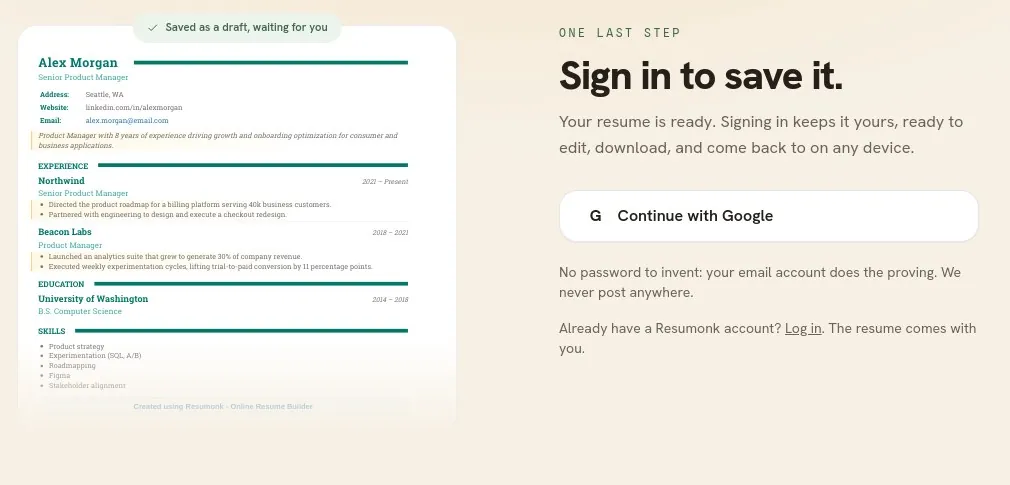
After an upload or an import, Resumonk shows you a preview of your first draft, with the rewritten lines highlighted. You can download the PDF straight away (it carries a small Resumonk footer). To keep the resume and edit it, click "Save & keep editing" and sign in with Google or LinkedIn. If you already have a Resumonk account, use the "Log in" link on that step instead, and the resume comes with you.
Edit the resume
- After you sign in, the editor opens with your resume in it. Later, open it with “Edit” on the Your resumes page.
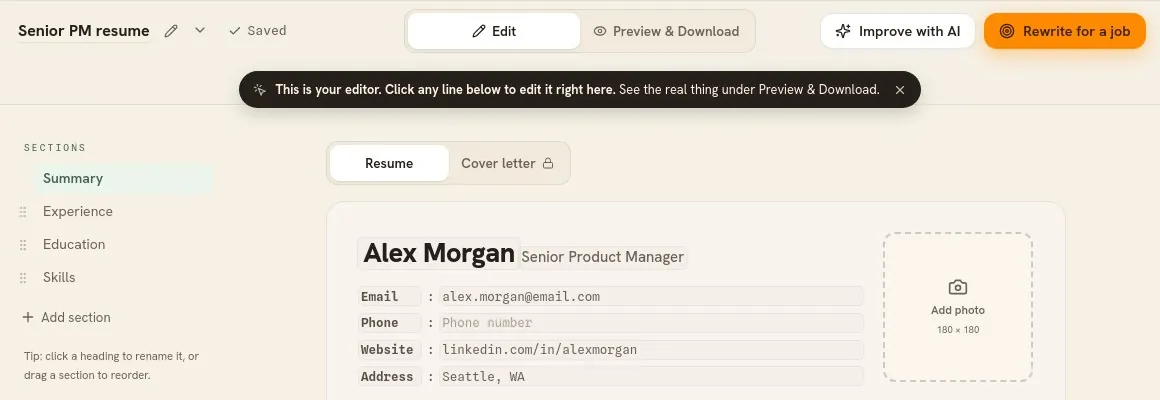
- Edit the imported information: click any line to change it, and add sections from the list on the left.
- Enhance your resume with AI: Take advantage of our AI features to optimize every section of your resume, creating a more personalized and impactful presentation:
- Improve with AI: click it at the top of the editor to improve the whole resume, or use the sparkles button on a single entry to improve only that entry. A bar then tells you how many lines changed, “See what changed” shows the words you had before, and “Undo” puts them back.

- Rewrite for a job: click it at the top of the editor, paste a job post or a link to it, and Resumonk writes a separate job version of your resume for that role. The resume you started from stays exactly as it was. The free plan includes one Improve with AI pass and one job version, and the Professional and Executive plans include both.

Preview and Download
- Review your full resume for any content, flow, or design fixes. Confirm there are no spelling or grammar mistakes.
- Make formatting changes to give your resume a polished, professional look.
- Click “Preview & Download” at the top of the editor to customize your resume design (your choices save as you make them):
- Choose a template that meets your requirements. Six of the 21 templates are free, and you can preview the others on your own resume before you upgrade.
- Edit PDF settings - Select the line spacing (font size), color, font, and page settings that go well with your unique personality.

- Click “Download” and choose PDF or DOCX. On the free plan, the PDF carries a small Resumonk footer and uses the template's own font and color. A paid plan removes the footer, keeps your font and color, and adds the DOCX download (for the 14 templates without a photo).

Create a cover letter (optional)
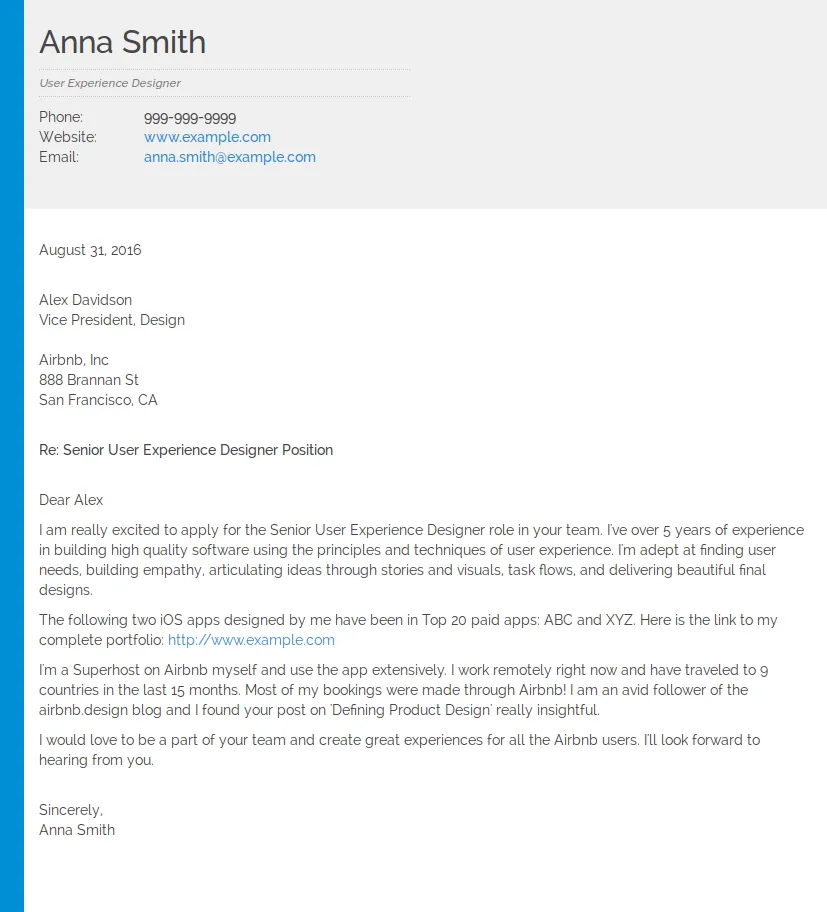
On a paid plan, you can create a complementary cover letter with the same design as your resume: open the “Cover letter” tab above the page in the editor. This personalized cover letter lets you provide additional context for your job applications and highlight specific qualifications that align with your desired roles.

Here is a sample cover letter created using the above feature:
Navigating the dashboard
Once your resume is saved to your account, you can open and edit it any time from your dashboard, the Your resumes page.

- New resume: start another resume. The free plan keeps one resume, and paid plans keep as many as you like.
- Your resumes: displays a list of all the resumes you’ve created.
- Actions: perform various actions on each resume:
- Preview: review how your resume appears to potential employers.
- Download: save a copy of the resume in the desired format (PDF, DOCX).
- Duplicate: copy an existing resume to change for a different kind of role, without starting from scratch. Duplicating comes with a paid plan.
- Analytics: see how many people opened your public resume page and downloaded its PDF. Public pages and analytics come with a paid plan.
- Edit: update information, change templates, or revise resume content as needed.
- Delete: remove an existing resume permanently.
Bonus Tip: On a paid plan, make your resume public and give it a custom URL (e.g., resumonk.com/your-name) for sharing. It adds a professional flair that can set you apart.
Resumonk automates the difficult aspects of resume writing so you can focus on showcasing your experiences. With easy previewing, editing, and downloading, crafting a polished resume is simple.
We hope this step-by-step guide helped you learn how to create professional resumes quickly using Resumonk's AI features. Check out our website for tips, examples, and resources to refine your resume further. Best of luck with your job search!
Keep reading
.png)
This article was originally published on our blog on Feb 23 2024 and authored by Manjeet Kaur. It was edited and republished in its present form by Team Resumonk on Sep 15 2025.