How to select a template for resume & cover letter
Resumonk has 21 templates. You can try any of them on your own content and watch the page redraw before you decide. Your resume and your cover letter always use the same template, so picking one sets both.
-
Open your resume and click Preview & Download at the top of the editor.
-
The template strip runs along the top. Use the arrows at either end to page through all 21, then click a template to try it.
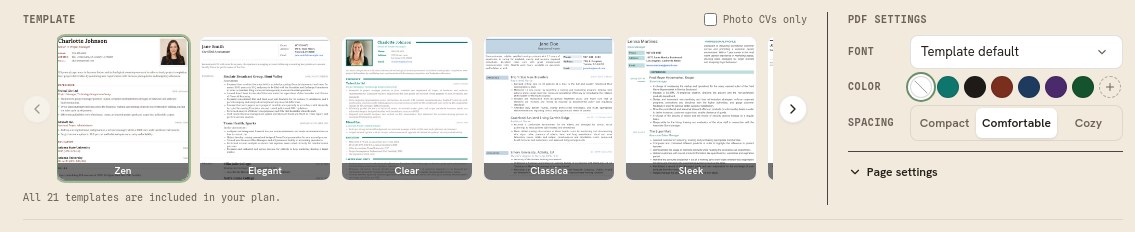
The template strip. The tile you click renders below in a second or two. -
Scroll down to read the document. This is the same render your PDF uses, so what you see is what you get.
What you can save
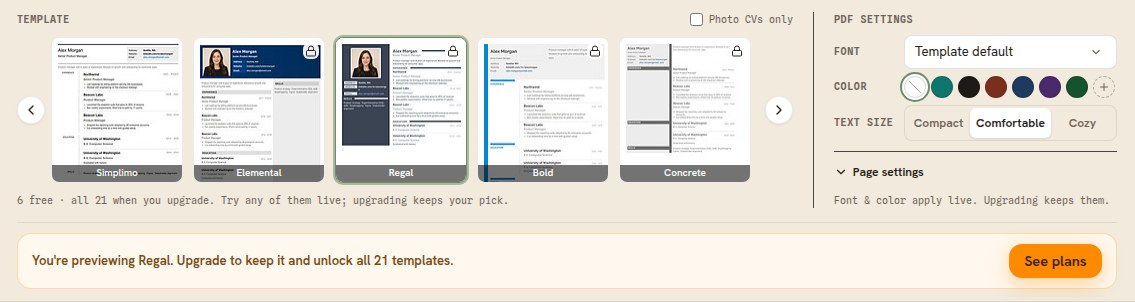
Six templates are free: Zen, Elegant, Clear, Classica, Sleek, and Simplimo. The other 15 are included on every paid plan.
On the free plan you can still open any of the 15 and see your own resume in it. A preview is not a save: the strip says so, and a bar under it names the template you are looking at.
Good to know
- There is no save button. Your pick is stored as soon as you make it, and the indicator beside the resume title reads Saved.
- The cover letter follows the resume's template. You cannot give the two different designs.
- Seven templates have a place for your photo. See how to select a photo template.
- Templates with a photo download as PDF only, not as Word.