How to upload a photo in your resume
Seven of the 21 templates have a place for a photo. Once your resume uses one of them, a photo box appears beside your name in the editor.
-
Make sure your resume uses a photo template. How to select a photo template covers that in three steps. Zen (the default) and Clear are the free ones.
-
Go back to Edit. A dashed box marked Add photo sits to the right of your name.
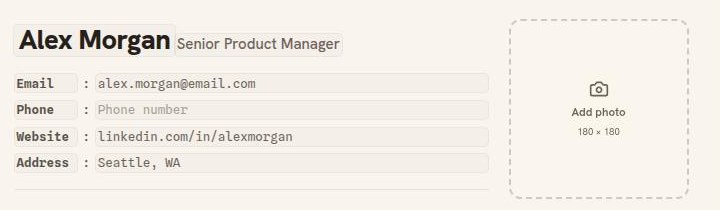
The empty photo box. The 180 by 180 label is the largest size the photo is stored at. -
Click the box and choose a picture from your computer. Use a JPG or PNG of up to 5 MB.
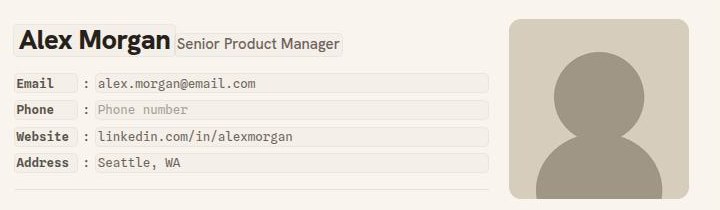
The photo appears at once, in the editor and in your PDF.
Replacing or removing it
Click the photo to choose a different file. To take it off the resume, use the small remove button on the photo.
Good to know
- The photo belongs to this resume. Another resume in your account keeps its own.
- The editor shows the photo in a square box, so a head-and-shoulders crop previews best. Your PDF prints it at its own shape, and it is never cropped for you.
- Templates with a photo download as PDF, not as Word.
- Photos are common on resumes in much of Europe, Asia, and Latin America, and uncommon in the United States, Canada, and the United Kingdom. Check what is normal where you are applying.