How to download your resume
You can download your resume as a PDF or as an editable Word file. Send the PDF unless an employer asks for Word: a PDF looks the same on every machine.
-
Open your resume and click Preview & Download.
-
Click the orange Download button on the right of the document.
-
Choose PDF or DOCX. The PDF opens in a new tab, where you can page through it and save it. The Word file does not open a tab: it downloads, or for a long resume it arrives by email a few minutes later. Each file takes its name from your resume. If you have not renamed the resume yourself, it is named after you.
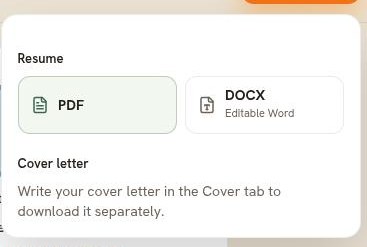
The download panel. The cover letter section is always here, and it tells you what to do next.
PDF or DOCX
- PDF is free on every plan, with a small Resumonk footer on the free plan. It keeps your design as you set it, with the free plan's exceptions explained below.
- DOCX is an editable Word file. It is included on every paid plan. It is available for 14 of the 21 templates: the seven with a photo are PDF only.
- Sometimes Resumonk prepares the Word file in the background rather than making you wait. It says so, and the file arrives by email a few minutes later.
Downloading on the free plan
PDF downloads are free on every plan, and there is no limit on them. A free PDF carries a small Resumonk footer. Upgrading removes it.
A free download uses the template's own font and color. If you have been trying a font, a color, or a premium template, the panel says so before you download. Your text size, margins, and page size are always kept.
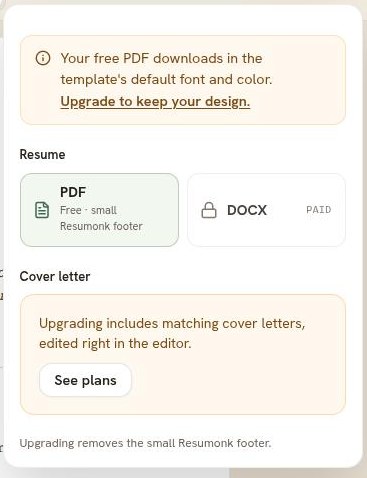
Good to know
- You can also download without opening the editor. Sign in, open Your resumes, and use the download control on a resume's card.
- Cover letters are included on every paid plan. Once you have written one, you choose whether it downloads as its own file or as part of the resume file.
- The Word file uses the layout built into the template you picked, so your font, color, text size and margin choices are not carried into it. The PDF is always the exact document you see on screen.