How to select a photo template
Seven of the 21 templates have a place for your photo. This guide shows you how to see only those seven, so you do not have to open each template to find out.
-
Open your resume and click Preview & Download.
-
Tick Photo CVs only above the template strip. The strip now shows the seven photo templates: Zen, Clear, Elemental, Regal, Vivid, Vibrant, and Avant.
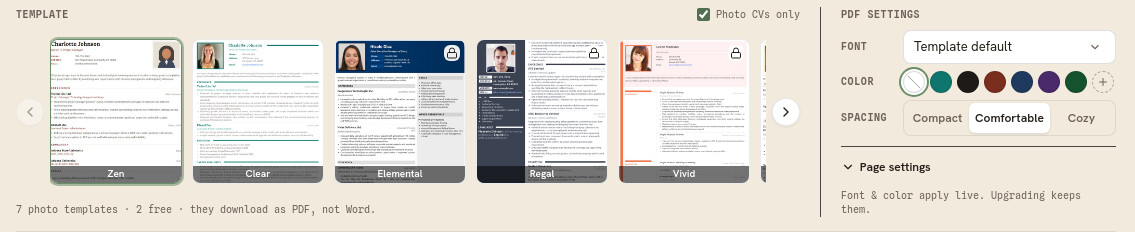
With the box ticked, only the templates that carry a photo are listed. -
Click one to see your resume in it. Untick the box to go back to all 21.
Adding the photo itself
The Add photo box appears once the photo template is saved on your resume. Go back to Edit and click the dashed box beside your name, then choose an image file. It is stored on this resume only.
Good to know
- Zen (the default template) and Clear are photo templates and they are free, so you can build a photo resume without upgrading. The other five are included on every paid plan.
- On the free plan, pick Zen or Clear if you want a photo on your resume. The other five are previews only, and a preview is not saved, so the photo box will not appear when you go back to Edit.
- Photo templates download as PDF, not as Word. The note under the template strip says so while the filter is on.
- Photos are common on resumes in much of Europe, Asia, and Latin America, and uncommon in the United States, Canada, and the United Kingdom. Check what is normal where you are applying.