How to rewrite your resume for a specific job
A resume that answers the job post reads better than a general one. Resumonk writes that version for you, as a separate copy, and leaves the resume you started from exactly as it was.
-
Open the resume you want to send and click Rewrite for a job at the top of the editor.
-
Paste the job post, or a link to the posting, and click Rewrite my resume.
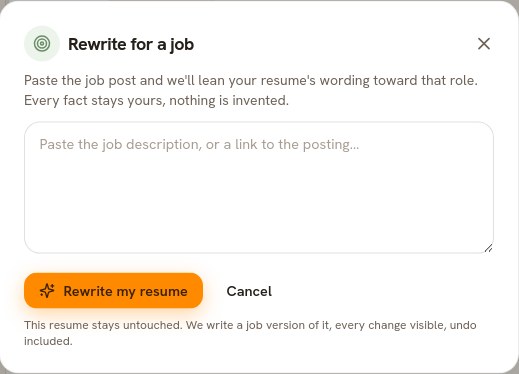
The dialog says what will happen: a job version, with the original untouched. -
Resumonk opens the new version when it is ready and tells you how many lines it changed. See what changed, Undo and Done work exactly as they do for Improve with AI.
Where the new version lives
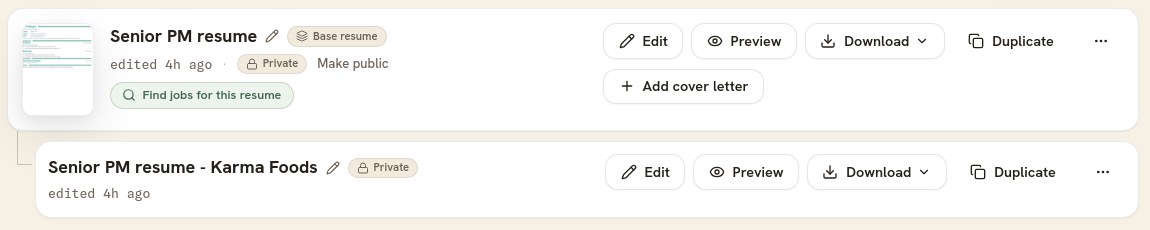
On the Your resumes page, the version sits under the resume it came from, which now carries a Base resume badge. When the posting states a company, the version is named after it. When it does not, the copy keeps a neutral name, because Resumonk will not guess one. Rename it yourself at any time.
Good to know
- The base resume never changes. Rewrite it for as many jobs as you like and you still have the original.
- Versions do not nest inside versions. Rewriting a version for another job makes a second version of the same base.
- Rename a version whenever you like. A name you choose is kept, and never overwritten.
- This is included on the Professional and Executive plans. The free plan includes one job version so you can see how it works.
- Read it before you send it. The rewrite leans on your own facts, and the judgment about what to emphasize is still yours.