How to improve your resume content with AI
Improve with AI rewrites the wording of what you have already written. It keeps every fact, shows you exactly what it changed, and lets you put any of it back.
-
Open your resume in the editor and click Improve with AI at the top.
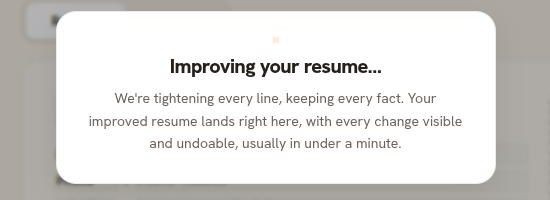
The pass runs on the whole resume. It usually takes under a minute. -
The new wording is applied when it arrives. A bar at the top tells you how many lines changed.

Running the pass is the decision. The bar is how you check and reverse it. -
Click See what changed. Every block it touched is tinted, and each one shows the words you had before, with its own way to put them back.
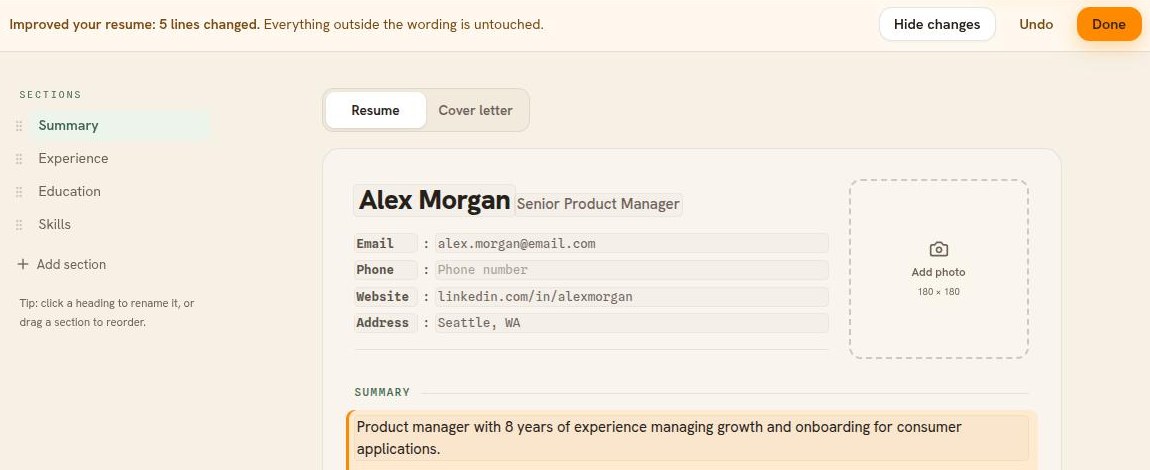
The lens marks what moved. Click Hide changes to turn the tint off. -
Keep it with Done, or reverse the whole pass with Undo. Done only closes the bar. Undo is still there afterwards, under AI edit at the top of the editor.
Improving one part instead of all of it
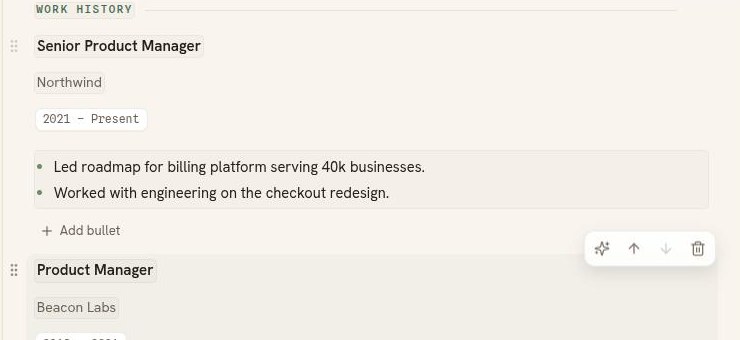
Move your pointer over a single entry and use the Improve with AI button, the sparkles icon on the entry's toolbar. That rewrites only that entry and leaves everything else alone. Custom sections do not have it yet, and the button says so.
What it will not do
- It never invents anything. No new employer, title, date, or number appears that you did not write.
- It rewrites wording, and it may also reorder your sections or reword a heading. It tells you when it has, and Undo puts that back too. It never deletes a section without asking you first.
- A field with a table keeps the table. The words around it are rewritten, and the text inside the cells can be too, so read the lens if you use tables.
Good to know
- Improve with AI is included on the Professional and Executive plans. The free plan includes one AI rewrite so you can see what it does.
- Every pass counts as one, whether you improve a single entry or the whole resume.
- Undo restores the words you had before the pass, and it stays available until your next AI pass. Running another one replaces what Undo would put back, so read the result before you run again.
- Read the result yourself. The wording is a suggestion, and it is your resume.