How to add bullet points
Bullet points are how most people read a resume. Any Details box, in any section, can be a list: the formatting bar does it, the way the toolbar in the old editor did.
-
Open your resume in the editor and stay on Edit.
-
Click into the entry's Details box. The formatting bar appears above it.
-
Click the bulleted-list button in the bar. A bullet appears with the cursor in it, ready to type. The button beside it makes a numbered list.
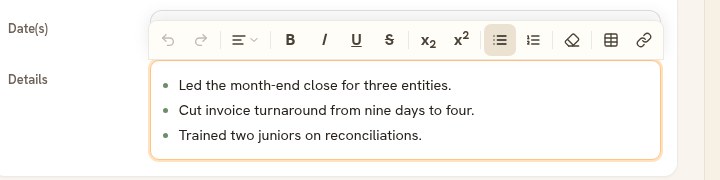
The formatting bar sits on top of whichever Details box your cursor is in, and on the Summary. -
Press Enter at the end of a bullet to start the next one. Press Enter on an empty bullet to leave the list.
Lines you have already typed
Select them and click the bulleted-list button: each line becomes a bullet. Click it again to turn them back into paragraphs. This works in every section, Experience included.
Good to know
- The formatting bar sits on top of whichever Details box your cursor is in. It moves under the box only when the box is right below the top of the screen, where there is no room above it.
- The bar carries undo and redo, bold, italic, underline, strikethrough, alignment, both list styles, subscript and superscript, clear formatting, links, and tables.
- Press Alt+F10 to reach the bar from the keyboard, and Escape to return to your text.
- Start each bullet with what you did and finish with what changed. One line each reads better than three.
- Pasting from another document brings the text and the line breaks, not that document's formatting.