How to rewrite your entire resume with AI
Give Resumonk a resume you already have, or your LinkedIn profile, and it rewrites the whole thing in one pass. You do not need an account to see the result.
-
Go to the start page and either upload a PDF, DOCX or plain-text file, or import your LinkedIn profile.
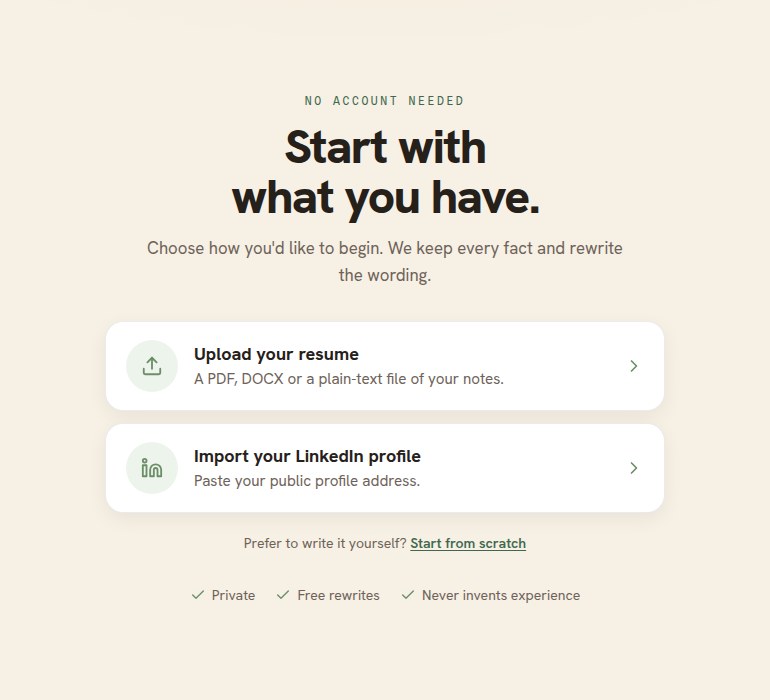
Choose the upload or the LinkedIn import. Each opens its own card. -
Optionally paste a job post first. Resumonk then writes two documents: your ordinary resume, and a version of it written for that role.
-
Click the button and wait. Resumonk shows what it has found as it reads.
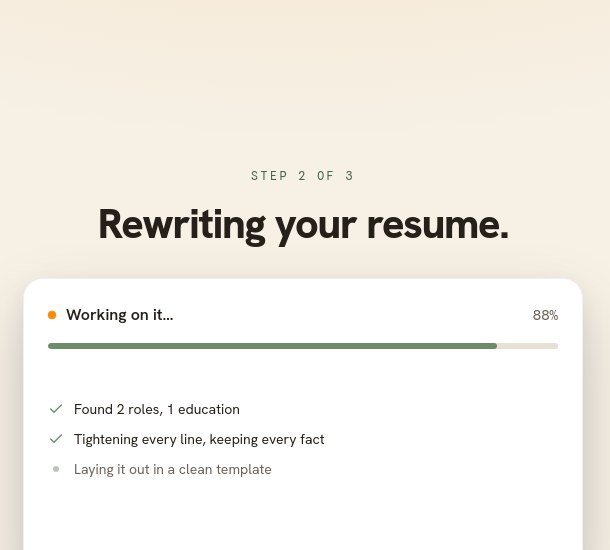
The footer of this screen states the rule: nothing is invented. -
Read the result. Rewritten lines are marked, and Resumonk says so when it has also reordered your sections.
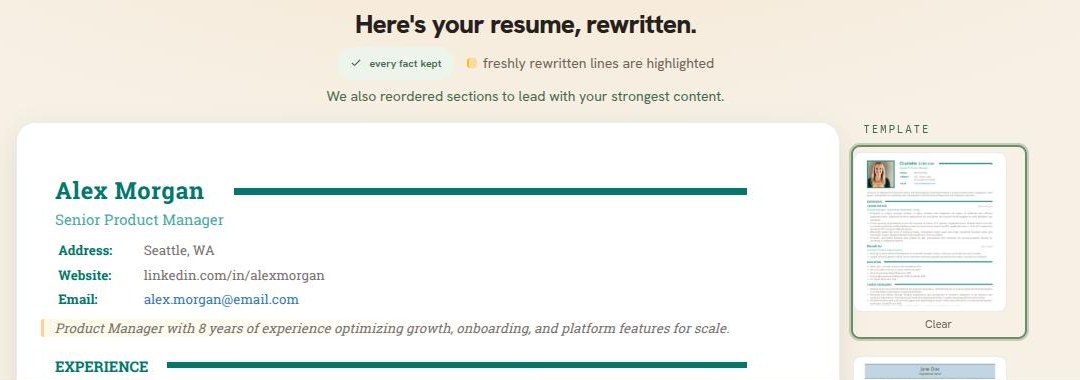
You can change the template here, download the PDF, or sign in to keep it.
Rewriting a resume you already keep here
Open it in the editor and use Improve with AI. That runs the same kind of pass on the resume in front of you, with a changed count and an undo. See how to improve your resume content with AI.
Good to know
- Every fact stays yours. The pass changes wording and order, and invents nothing.
- The free plan includes one rewrite. The Professional and Executive plans include them as part of the plan.
- The PDF is free to download with no account. It carries a small Resumonk footer, which upgrading removes.
- If you gave a job post, you get a version written for that role, and your plain resume as well.