How to change the URL of your public resume
Your public resume comes with a short address made of random characters. On a paid plan you can replace it with something you would be happy to read out, such as your own name. On every plan you can swap it for a new random one.
-
The resume has to be public first. See how to make your resume public. Publishing is included on every paid plan.
-
On your resumes, open the card's ⋯ menu and choose Change URL.
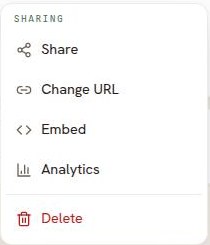
Change URL is greyed out on a private resume, and says why. -
On a paid plan, type the address you want. Letters, numbers, hyphens and underscores are allowed, between 3 and 50 characters. If you would rather not choose, use Use a random one.
-
Click Save this URL.
The old address stops working
This is the part to think about before you click. Anyone holding the old link reaches nothing after the change, and the dialog says so. If you have already sent your resume to someone, either leave the address alone or send them the new one.
On the free plan
The free plan's dialog has no box to type in. It offers Use a random one instead, which gives the resume a new random address and retires the old one. Choosing your own address is included on every paid plan.
Good to know
- Addresses are unique across Resumonk, so a name someone already took is refused. The dialog tells you and you can try another.
- Pick something plain. Your name, or your name and your field, reads better on an application than a string of characters.