How to change page margins
You can set the top, right, bottom, and left margins of your PDF resume yourself. Each one is set in mm, from 0 to 30.
-
Open your resume and click Preview & Download.
-
Under the PDF settings box, click Page settings to open it.
-
Set Top, Right, Bottom, and Left. Every resume starts at 10 mm on all four sides.
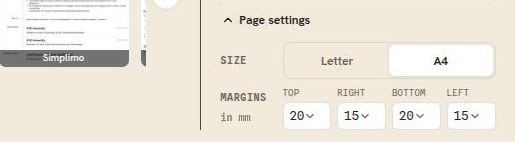
The four margins sit under Page settings. The document redraws after each change.
Good to know
- Margins are free on every plan.
- Margins apply to your PDF and to your public resume page, which is drawn as the same sheet of paper. A Word file uses the layout built into that template instead.
- Smaller margins fit more on a page. Going below about 10 mm leaves very little white space, and some home printers cannot print that close to the edge.
- Two adjustments happen for you. The right margin prints 2 mm narrower than the number you set, which is how Resumonk has always rendered it. On the free plan the bottom margin stays at 9 mm or more, because the small Resumonk footer needs that room.
- To pull a short overflow back onto one page, try the Compact text size as well.