How to change account details
Your name, your email address, your password, and which emails Resumonk sends you all live on one page.
Your name and email
-
Open your account page. It is under the person icon at the top right.
-
Edit Name or Email and click Save changes.
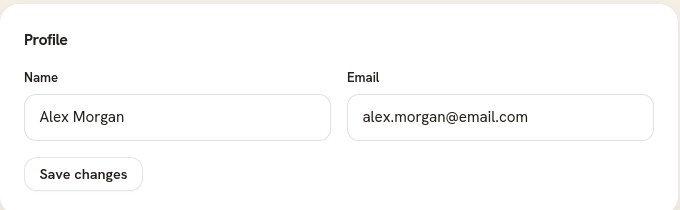
Your email address is how Resumonk finds your account, so change it with care.
Your password
The Sign-in card below shows how you get in. If you have a password, you can change it here: type your current one, then the new one twice, and click Change password.
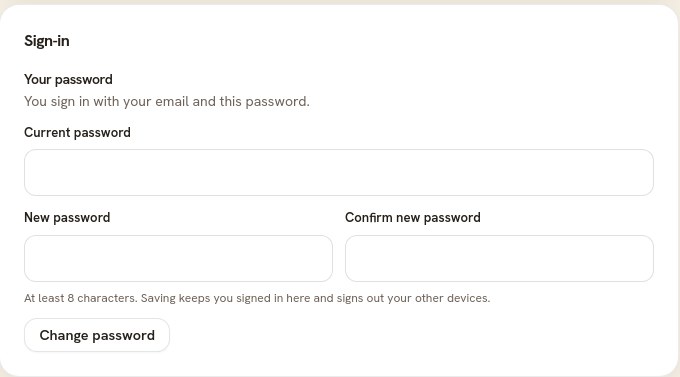
If you sign in with Google, or another provider, and have never had a password, the same card says Add a password. Set one and you can sign in either way from then on.
Which emails you get
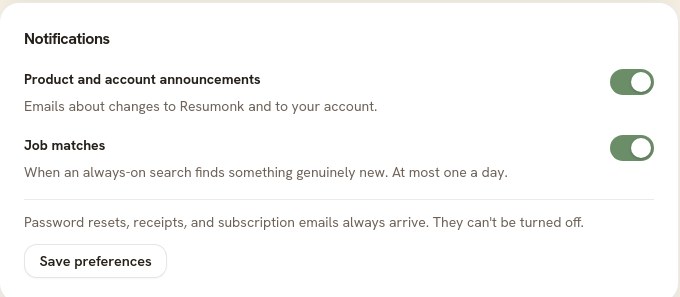
The Notifications card has a switch for product and account announcements, and one for job matches. Turn either off and click Save preferences.
Good to know
- Changing your email address changes where Resumonk writes to you, including password resets. Use an address you will keep.
- A new password has to be at least 8 characters.
- Your plan, your data export, and account deletion are further down the same page.