How to change your PDF resume's font
Every template comes with a font that suits it. You can swap it for one of 18 fonts, and see the change in your own resume straight away.
-
Open your resume and click Preview & Download.
-
Find the PDF settings box on the right. Open the Font list and choose a font.
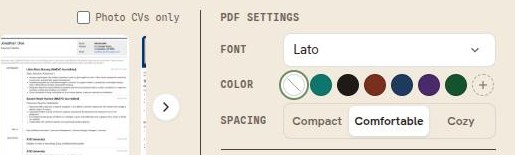
The Font list sits at the top of the PDF settings box. -
Scroll down to the document. It redraws in the new font in a second or two.
Going back to the template's own font
Choose Template default at the top of the list. That is the reset: the resume goes back to the font the template was designed with.
Good to know
- There is no save button. The choice is stored as you make it, and the indicator beside the resume title reads Saved.
- The font applies to your PDF and to your public resume page. A Word file uses the layout built into that template instead, so it does not carry your font.
- Choosing a font is included on every paid plan. On the free plan the list still works and the preview still updates, so you can see the effect. Your resume then keeps its template font when you download it. Resumonk says so under the preview, and again in the download panel.
- On a narrower screen, a phone or a tablet, the same controls are behind Font, color & PDF settings under the template strip.